 Support us on Patreon
 PayPal
Thank you for helping to keep GamingOnLinux civil and safe!
Please tell us why you're reporting this content. Please note we store your IP address for all reports to help prevent spam and abuse. You can also email any complaints to: [email protected].
- Survive an elevator trying to eat you in co-op horror KLETKA when it releases February 19
- Draft code submitted to KDE Plasma turns it into a full VR desktop
- Proton Experimental brings updates for MonoGame, Rockstar Launcher and more
- Valve tweak Steam AI disclosure form for developers to clarify it's for content consumed by players
- No Rest for the Wicked co-op update lands on January 22 and it hit a big sales milestone
- > See more over 30 days here
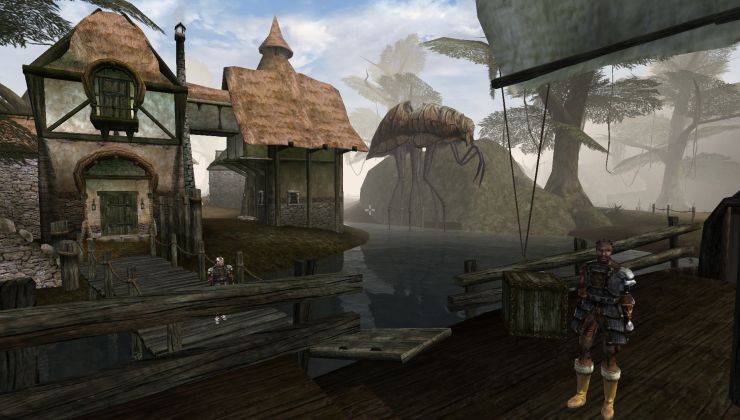 How to setup OpenMW for modern Morrowind on Linux / SteamOS and Steam Deck
 How to install Hollow Knight: Silksong mods on Linux, SteamOS and Steam Deck
- Casual/Social places for developer chatter
- simplyseven - Will you buy the new Steam Frame?
- eev - One-time logout
- Liam Dawe - Away later this week...
- Liam Dawe - Weekend Players' Club 2026-01-16
- grigi - See more posts
This is for those looking for a solution that doesn't involve Flatpak. It is primarily intended for desktop Linux users. Although, I imagine with a little tweaking, It might work for Steam Deck as well.
There are many ways to install OpenMW. There is even an unofficial AppImage available. The distro repositories almost always offer an out-of-date version. In the past, I used to install via the LaunchPad PPA (only works for Ubuntu derivatives). The problem with PPAs is that they have to be reinstalled with every major version upgrade of your distro. If you are slow to upgrade, the PPA will eventually update to a version of OpenMW that will not run on your outdated distro. Updating uninstalls the version that currently works and then fails on installing the new version.
NOTE: By default, all installations share the same saves and configuration. There is a feature that was introduced with version 0.48 that allows you to set up a "portable install", which allows you to isolate a particular version with its own configuration and save files.
NOTE: If you want to maintain multiple versions, keep in mind that only one of them can be in your default PATH. In fact, it would probably be better to keep the lot of them out of your PATH altogether. Instead of treating the executable/script like a system command, you will just have to provide the entire folder address to launch the game.
Spoiler, click me
Option 3) Direct Download
https://openmw.readthedocs.io/en/stable/manuals/installation/install-openmw.html#direct-download
Recently, I discovered that OpenMW offers a Direct Download "installer" on their GitHub site. This archive acts just like the Windows installer, allowing you to keep multiple versions of OpenMW installed in Linux.
Spoiler, click me
https://modding-openmw.com/tips/portable-install/
The problem is that the installation instructions from the online guide are written very poorly. All they say is "run the install package once downloaded. It’s now installed!". It is not that easy. For one, the "installer" is an archive, not an executable. For two, they assume that you know what file to run once the archive is extracted. Here are my expanded instructions:
1) Download the latest Direct Download archive from the GitHub Releases page.
2) Extract the archive to the folder/location of your choice.
Spoiler, click me
This, however, also makes the installation somewhat portable since you can place folder wherever you want. Combined with the "portable install" feature described above, this means you won't even have to have the game installed in your File System partition at all.
3) Launch the "openmw-launcher" script from within the folder.
.... a) If you are simply upgrading, it will use your existing configuration. You are good to go.
.... b) If this is a fresh installation, the launcher will offer to run the OpenMW Wizard to help you set everything up (see Option 1 of Liam's guide above for the rest of the steps).
4) If the launcher script will not start, then you have very likely encountered the rather infamous glibc issue (you can verify this by trying to launching the script in a terminal).
Spoiler, click me
GLIBC Compatibility Issues
One of the big concerns that I have with the OpenMW project is that they don't clearly notify Linux users of a change in system requirements (which they could include with the text for each release on GitHub). The OpenMW Team occasionally increases the version of the glibc library required without clearly advising their Linux users of this change.
For example, the latest version of OpenMW (0.50.0) requires glibc 2.38. This is only available on Ubuntu 24.04 (Mint 22) or higher. (Still running an earlier distro version? Surprise!)
The solution is quite simple. You need to integrate the game into the Steam Client and set the compatibility to Steam Linux Runtime 4, which is based on Debian 13.2 Trixie (and supports glibc 2.38).
5) Make sure to download the latest version of the Steam Linux Runtime (currently Steam Linux Runtime 4).
6) To add OpenMW to the Steam client, choose the option "Add a Non-Steam Game ...". You may have to manually point Steam at the location of the openmw-launcher script (I did).
7) Go to the Properties menu for openmw-launcher and select "Install Compatibility Tool". Choose the latest Steam Linux Runtime, which you downloaded in Step 5.
8) Update and customize the Steam Library entry to your preferences. You should now be good to go.